Connect Gemini to TellOnce
Add TellOnce to Gemini as a custom connected app.
- A personal Google account
- A TellOnce account
- About three minutes
Your TellOnce address
It's the same for everyone: signing in is what links it to your memory. You'll also find it in the TellOnce app under Connections. No account yet? Start free, it takes a minute.
-
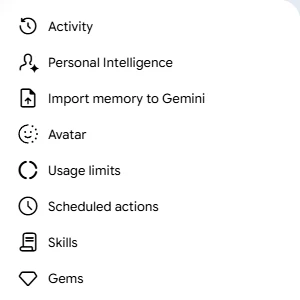
Open Personal Intelligence
On gemini.google.com, choose the gear next to your name at the bottom left, then Personal Intelligence.
-
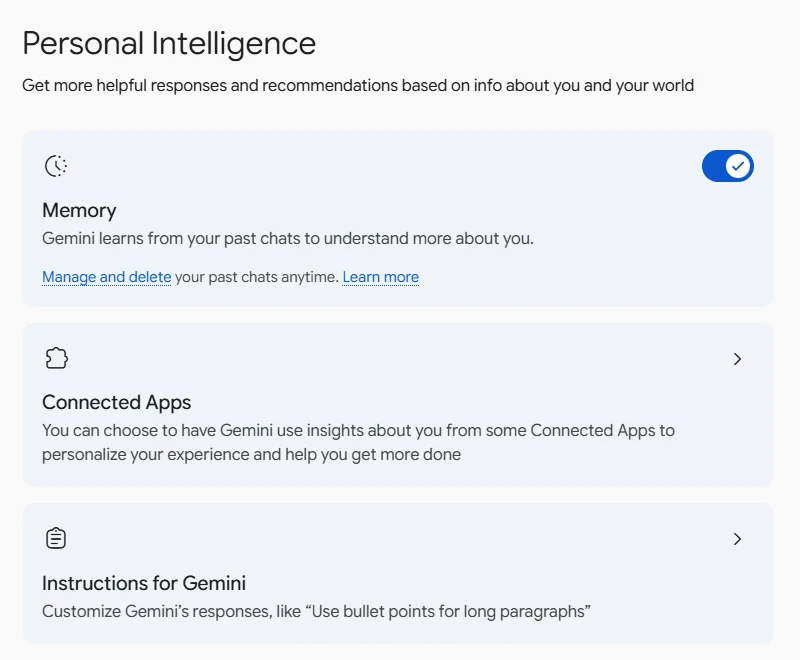
Open Connected Apps
Choose Connected Apps.
-
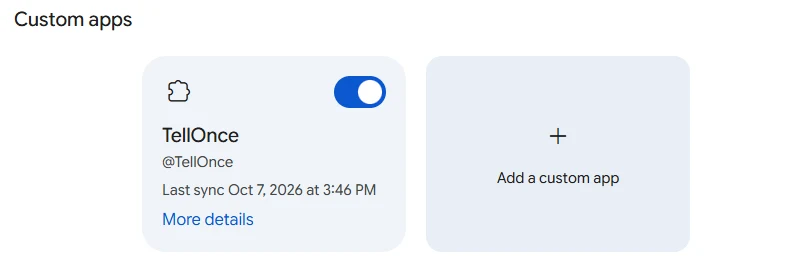
Add a custom app
Scroll to Custom apps (or choose the Custom apps button at the top) and choose Add a custom app. Once you're connected, TellOnce shows here with its switch on.
-
Paste your TellOnce address
Paste
https://tellonce.app/mcpas the MCP Server URL and choose Next.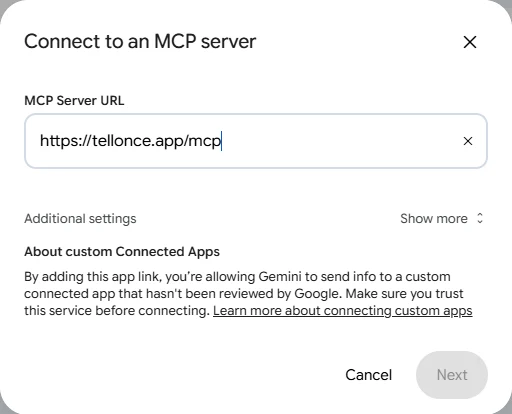
-
Sign in to TellOnce and approve
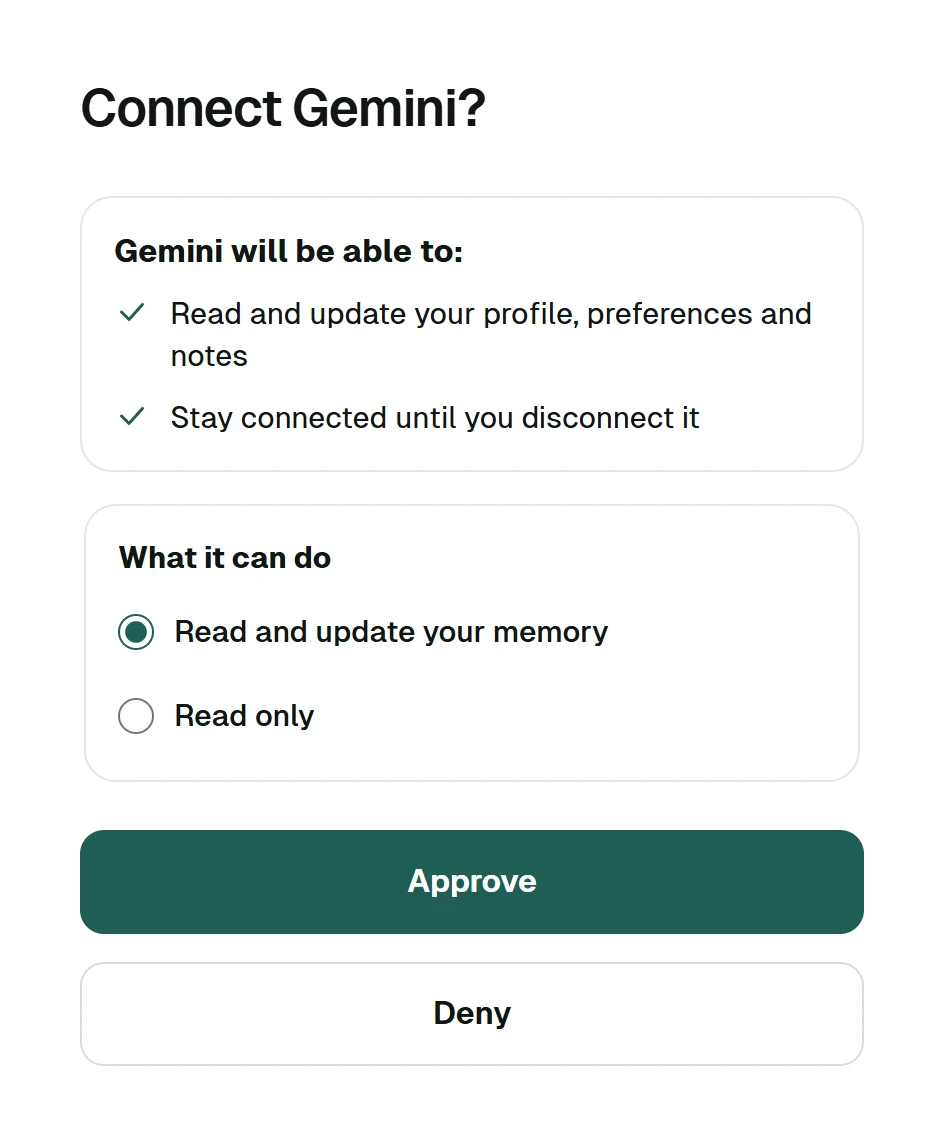
Gemini opens TellOnce in a new window. Sign in with the same email or Google account you use for TellOnce, then choose Approve. Pick Read only if you want Gemini to see your memory without saving anything new.
-
Try it
In a new chat, type @TellOnce and ask “what do you know about me?” Gemini calls TellOnce when you mention it.
Phone app
Add TellOnce on the web first. It then works in the Gemini phone app too.
Don't see Custom apps?
Google doesn't offer custom apps for every account or country yet, and work or school accounts may not have them. Use a context link instead.
Check it worked
In TellOnce, open Connections: the app now appears there, with the time it last read your memory. Everything it saves shows up in Review, where you can keep, edit or undo it.
If a step doesn't match
Gemini moves its menus from time to time. Look for “connectors”, “apps” or “MCP” in its settings, or write to support@tellonce.app and we'll update this guide.