Use TellOnce in apps that can't connect
For free plans and AI apps without MCP connectors: share a read-only context link, or paste your profile into the app's settings.
- A TellOnce account
- Any AI chat app
Option 1: a context link
A context link is a private, read-only address that returns your profile as plain text. Paste it into any chat and the AI reads it, the same way it reads any web page. It always shows your latest profile, and you can turn it off at any time.
-
Create a link
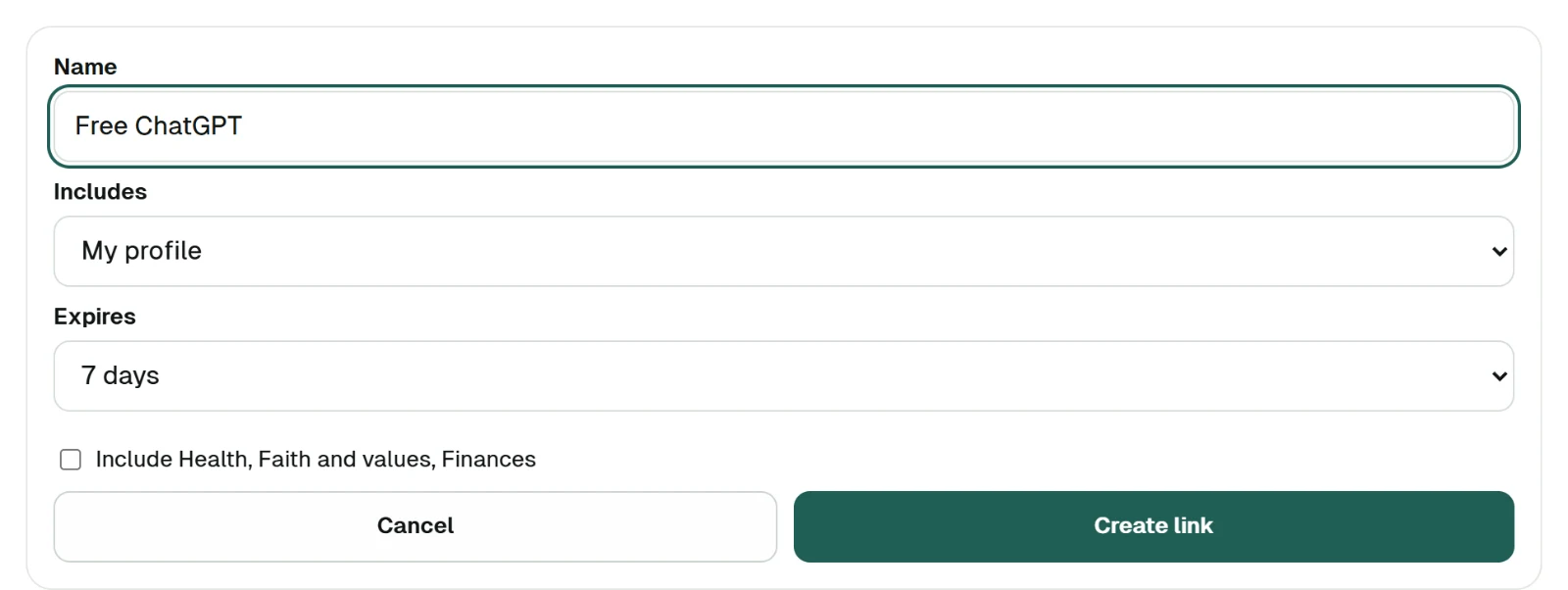
In TellOnce, open Connections and scroll to Context links. Choose New context link, give it a name you'll recognise (like the app it's for), and pick how long it should work. Health, faith and finance cards stay out unless you tick the box.
-
Copy it
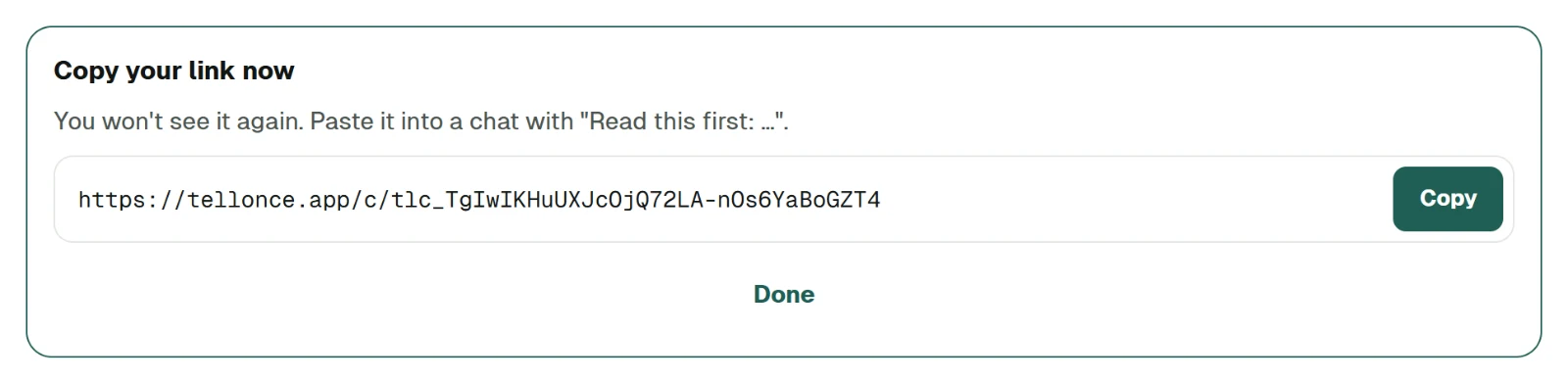
TellOnce shows the link once. Choose Copy. If you lose it, turn it off and make a new one.
-
Paste it into a chat
Start your chat with “Read this first: https://tellonce.app/c/…” and then ask your question. The AI reads your profile and answers with it in mind. Apps that can't open web pages won't be able to read the link; use option 2 for those.
-
Turn it off when you're done
Anyone with the link can read your profile, so treat it like a password. Your links are listed in Connections with when each was last read; choose Turn off to stop one working.

Option 2: paste your profile into the app's settings
Most AI apps have a box for “custom instructions” or “about you”. TellOnce trims your profile to fit each one. This copy doesn't update itself: copy again after your profile changes.
-
Copy your profile for the app
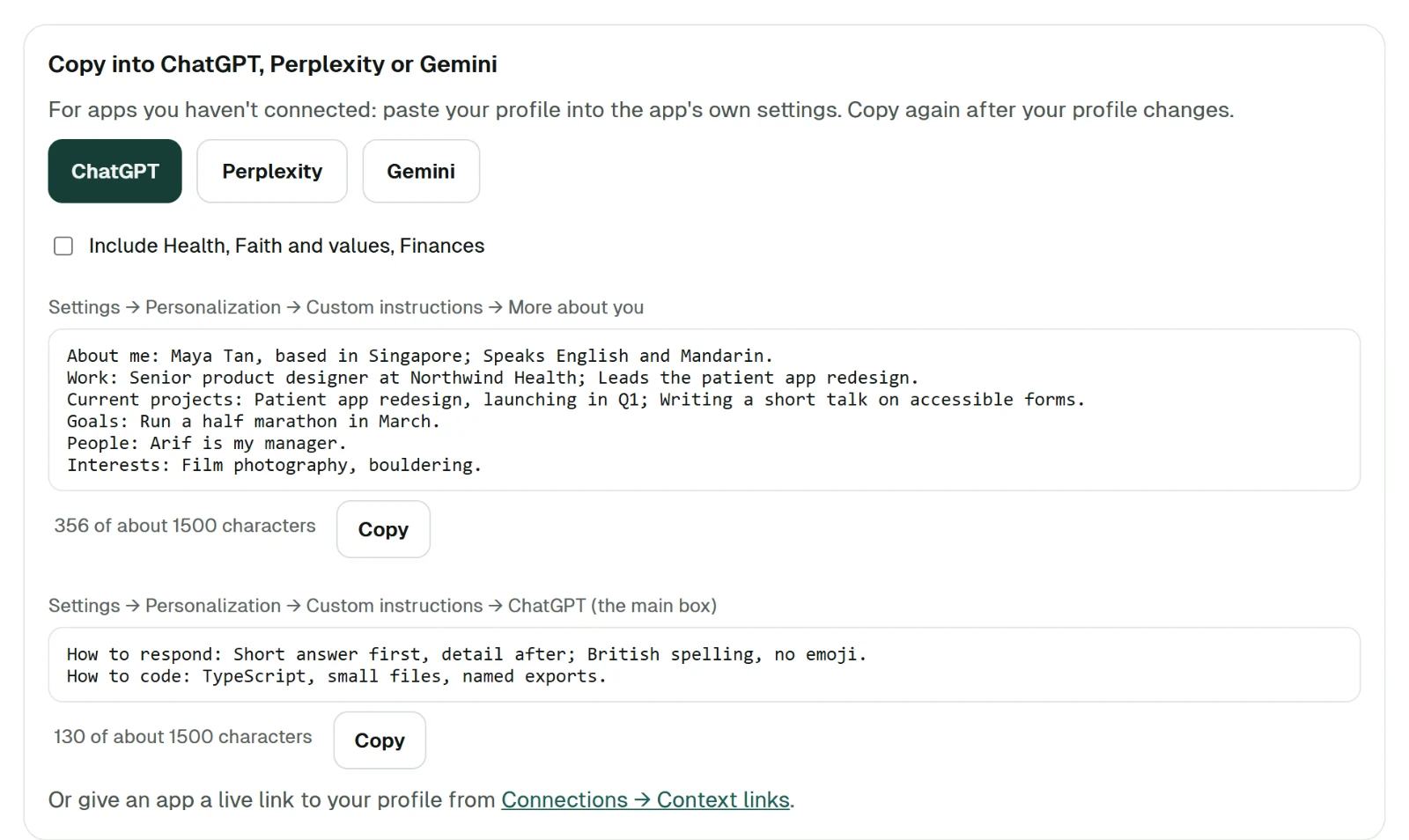
In TellOnce, open Profile and find Copy into ChatGPT, Perplexity or Gemini. Choose the app. Each box is labelled with where it goes in that app, and shows how much room is left.
-
Paste it into the app
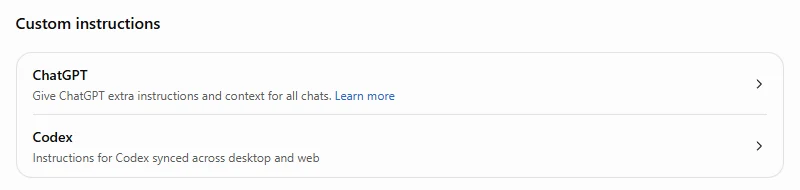
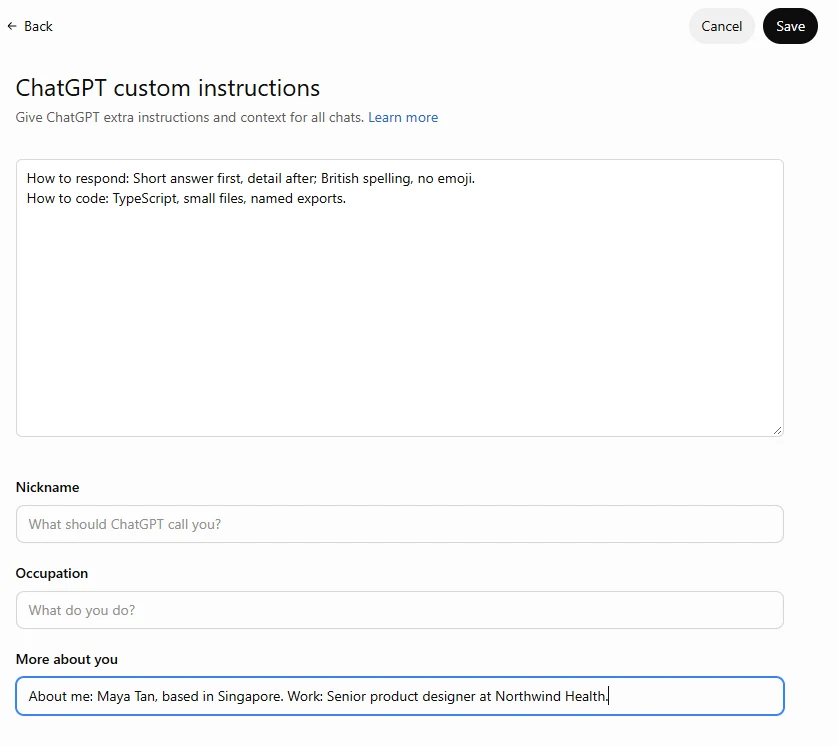
In ChatGPT, open Settings, then Personalization, and under Custom instructions choose ChatGPT.
-
Fill the boxes and save
Paste the “How to respond” text into the main box and the “About me” text into More about you, then choose Save. In Perplexity the box is Settings → Personalisation → Custom instructions; in Gemini it's Settings → Personal Intelligence → Instructions for Gemini, one line per entry.
Which should I use?
Use a context link when you want the AI to see your latest profile, or for a one-off chat in an app you don't use often. Paste into settings when the app can't open links, or you want it to know you in every chat without asking. Either way the AI can only read: to let it save new facts, connect it if your plan allows.
Bring over what another AI already knows
On the Profile page, Bring over what another AI knows gives you a question to ask the other app. Paste its answer back and TellOnce sorts each fact into your cards, waiting in Review until you keep it.