How to use TellOnce
How your AI apps read your memory, how they save new things to it, and how you check what they saved.
- TellOnce connected to at least one AI app
- About five minutes to read
Get your context into a chat
Once an app is connected you don't need to paste anything. When a question is about you, your work or how you like answers, the app reads your TellOnce profile before it replies.
-
Just ask
Ask something where knowing you helps, like “Plan my week” or “Write a short bio for me.” The app reads your profile and answers with it in mind. Most apps show a line in the chat when they use TellOnce.
-
Point it at TellOnce when it doesn't look
If an answer ignores what you've told TellOnce, say “Check TellOnce first” or ask “What does TellOnce know about my work?” The app can also search your notes, not only your profile, so “Look up my trip plans in TellOnce” works too. In Gemini and Perplexity, start with @TellOnce.
-
Keep your profile the way you want it
Your profile is what every app reads first. Open Profile in TellOnce to see it as cards: About me, Work, Current projects, Goals, People, Interests and How to respond. Choose a card to change it. The How to respond card sets tone, length and format for every app at once.
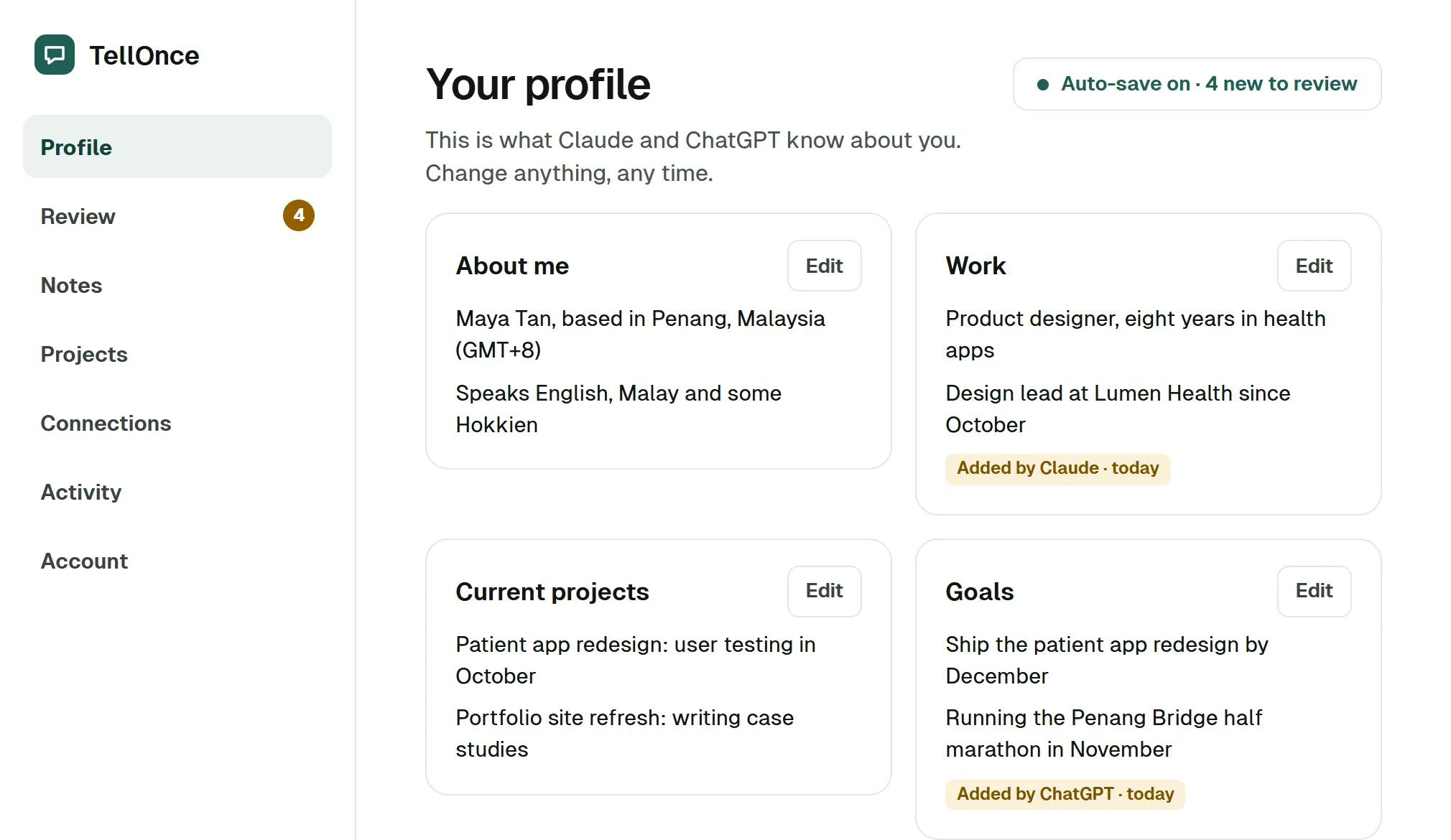
Save new things
Apps save lasting facts about you as you chat: things that will still be true next month. You don't need to ask them to, and you can undo every save.
-
Mention it the way you normally would
Say “I've just started as design lead at Lumen” and the app saves it to your Work card. Passing remarks and one-off questions aren't saved, only facts about you.
-
Or ask it to remember
“Remember that I prefer short answers with bullet points” goes to How to respond. When something changes, say so: “I've moved to Penang” crosses out the old line and adds the new one under it, so you can see what changed.
-
Know what waits for you
Some things are never added straight to your profile. Anything about health, money, faith or other private topics, and anything that doesn't fit a card, waits in Review until you keep it. Until then no app can see it. Passwords, card numbers, ID numbers and API keys are refused outright.
Check what was saved
-
Open Review
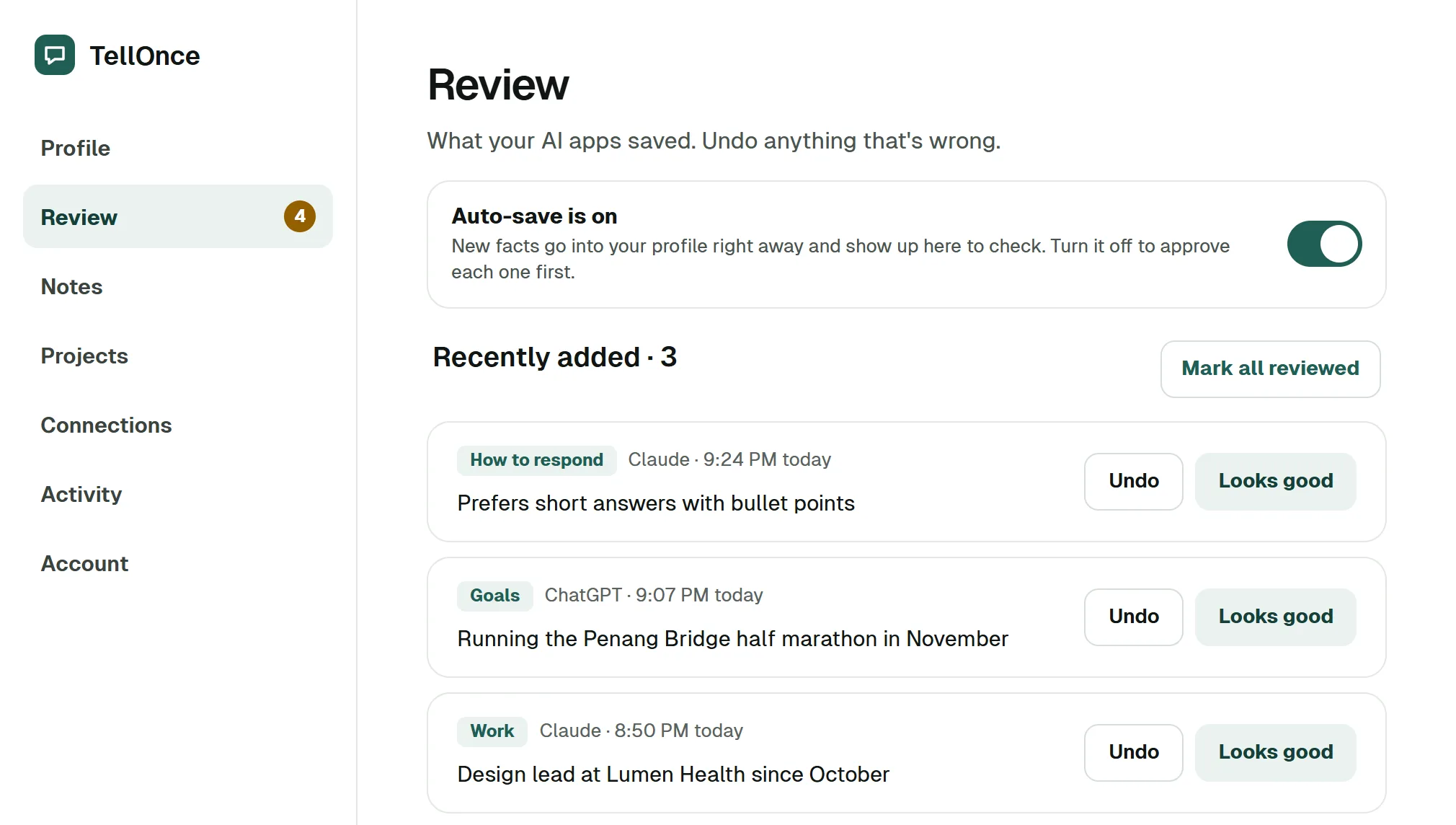
Everything an app saved shows under Recently added, with the card it went to and which app saved it. Choose Undo to take it back out of your profile, or Looks good to clear it from the list. Mark all reviewed clears the lot.
-
Keep or dismiss what's waiting
Under Waiting for you, choose Keep to add a fact to your profile. TellOnce asks which card it goes in. Choose Edit to change the wording first, or Dismiss to drop it.

-
Approve every save first, if you prefer
At the top of Review, turn Auto-save off. New facts then wait under Waiting for you, and nothing reaches your profile until you keep it.
-
See every read and change
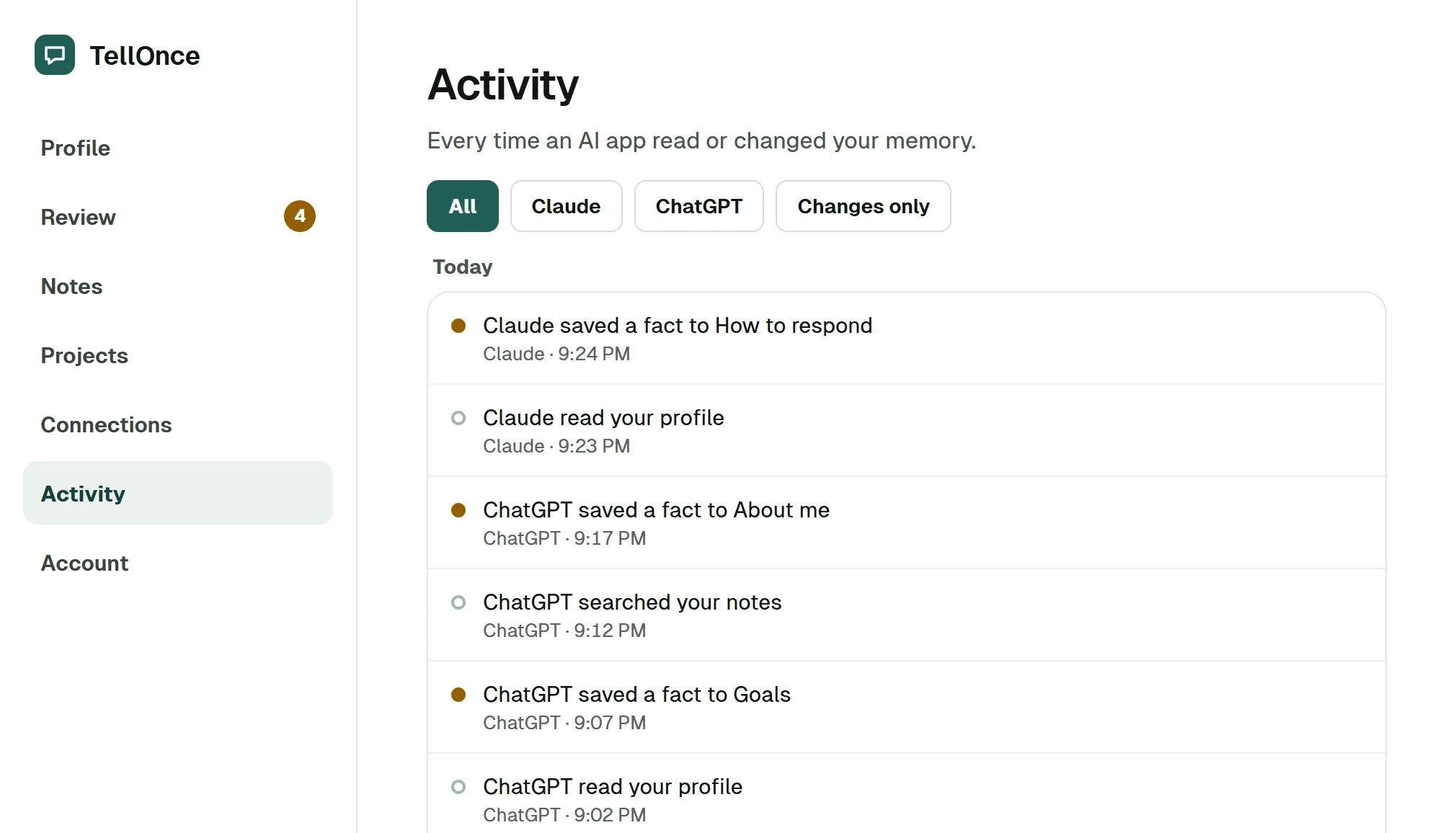
Activity lists each time an app read your memory or saved to it, newest first.
Change it yourself any time
You can edit any card on the Profile page or any note under Notes. If an app saves to the same card while you're editing, TellOnce shows both versions and lets you choose, so neither change is lost.
In code editors
Claude Code, Cursor and other coding tools read your profile and the current project's notes the same way. TellOnce also adds slash commands: recall loads your memory into the session, save-session saves what you decided for you to review, and handoff writes a note so the next session can pick up.
Apps that can't connect
They can still read your profile with a context link or a copy in their settings, but they can't save anything new.